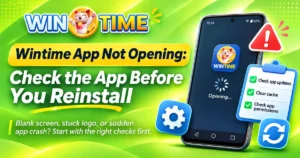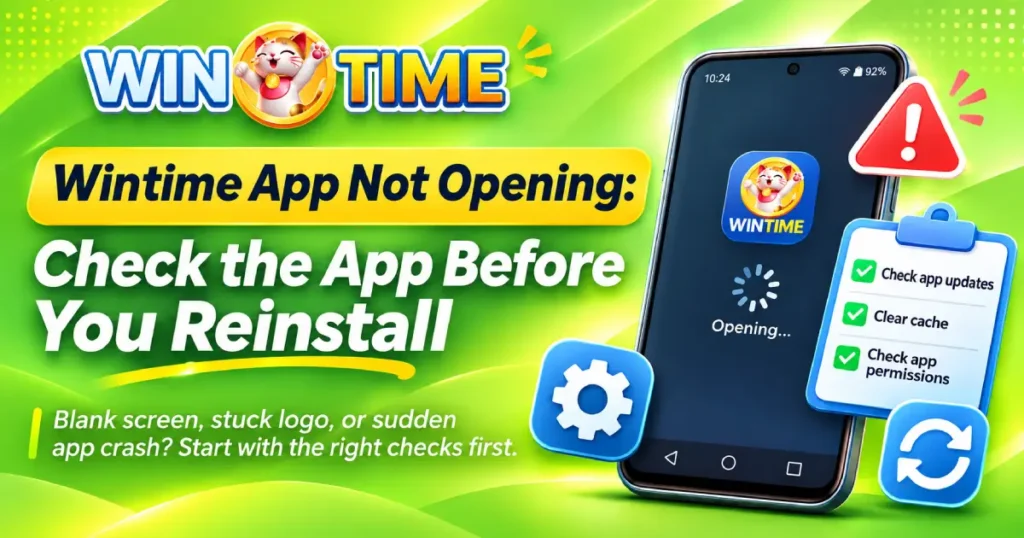
Wintime App Not Opening problem happens when you tap the application, but it does not launch as expected. The screen may remain unchanged, turn blank, stop at the Wintime logo, or return to the Android home screen before you reach the login page.
For Wintime users, the most useful first step is identifying exactly where startup stops. Device storage, temporary app data, Android compatibility, the installed version, and device conditions can affect startup differently. Checking them in order helps you avoid unnecessary password resets, repeated APK downloads, or reinstalling an app before knowing what is actually wrong.
Why Is the Wintime App Not Opening?
A Wintime App Not Opening issue can come from either the application or the device environment. What happens immediately after you tap the icon provides the first clue.
| What You See | Check First |
| Nothing happens | Restart app and device |
| Blank screen appears | App data and version |
| Logo appears but stops | Loading and connection |
| App opens then closes | App crash |
| Problem starts after update | Current app version |
| Several apps will not open | Android or device |
Do not treat every symptom as the same technical problem. An app that never starts requires a different approach from one that successfully launches but cannot load content.
Close Wintime and Try a Fresh Launch
Start with the least disruptive check. Close Wintime completely instead of leaving it in your recent applications, then open it again.
Tap the icon once and give the application time to respond. Repeatedly tapping it can make it harder to observe what actually happens during startup.
Identify the Exact Failure Point
Watch the screen carefully.
Does nothing happen? Does the Wintime logo appear? Do you briefly see the app before Android returns to the home screen?
If Wintime App Not Opening follows the same pattern every time, remember the exact point where startup stops. A repeatable symptom gives you a much clearer troubleshooting direction.
Restart Your Android Device
If a fresh launch does not work, restart your phone or tablet.
Restarting closes temporary processes and gives Android a clean operating state without deleting Wintime, removing account information, or changing your credentials.
Test Wintime Before Other Apps
After Android restarts, open Wintime before launching several other applications.
If Wintime now starts normally, the earlier failure may have involved a temporary device process. If Wintime App Not Opening continues immediately after restart, move to storage, app version, and application-data checks rather than restarting repeatedly.
Check Available Device Storage
Applications require available storage for normal operations and temporary information. A device that is close to full capacity may have difficulty running applications consistently.
When Wintime App Not Opening occurs on a device with very little available storage, creating additional space is a useful check before changing app settings or reinstalling.
Free Storage Carefully
Open Android storage settings and review files or applications you no longer need.
Possible items include:
- Old downloads
- Duplicate files
- Large unused videos
- Applications you no longer use
- Temporary files you recognize
Avoid deleting Android system files or unfamiliar folders.
After creating some space, open Wintime again and check whether the startup behavior changes.
Check the Installed Wintime Version
If Wintime previously opened normally but suddenly stopped, consider whether the problem started around an application update.
Check the installed version through Android’s app information area when available.
A Wintime App Not Opening issue that begins directly after a version change provides an important timing clue. It helps separate a recent app change from an older device problem.
Avoid Random APK Downgrades
Do not immediately replace the current installation with an older APK from an unfamiliar website.
Unknown APK files can be outdated, modified, or incompatible with your Android environment. Introducing another version before identifying the original issue can turn one startup problem into an installation or compatibility problem.
Use the appropriate Wintime source when checking whether a current app version is available.
Review Temporary App Data
Android applications store temporary information during normal use. Problems involving this information can sometimes interfere with application startup.
If Wintime App Not Opening continues after restarting the device and checking storage, temporary application data becomes another area worth reviewing.
Know What You Are Removing
Open Wintime’s app information through Android settings and review the available storage controls.
Clearing temporary cache and removing all application data are different actions. Clearing full data can remove preferences and may sign you out.
Make sure you know your account credentials before choosing an option that removes stored application information.
Change one setting at a time, reopen Wintime, and check the result. This makes it easier to identify which action actually affected startup.
Check Android Compatibility
The Android version, device model, and available system resources can affect whether an application starts normally.
Check your Android version through device settings. Compatibility deserves more attention when the phone is older or the problem appeared after a newer Wintime version was installed.
If Wintime App Not Opening affects one device while the same app works elsewhere, the original device environment becomes a stronger area to investigate.
Compare Other Applications
Use other apps as a quick diagnostic test:
Only Wintime fails → Focus on Wintime.
Several apps fail → Investigate Android or the device.
Wintime works on another device → Focus on the original device.
This comparison helps prevent a broader phone problem from being diagnosed as a Wintime-specific failure.
Is Wintime Actually Stuck on Loading?
An application that does not open and one that opens but remains on a loading screen are different technical problems.
Distinguishing Wintime App Not Opening from a loading-screen problem matters because the first occurs before a normal launch, while the second begins after the application has already started.
Match the Symptom to the Problem
Use this quick guide:
Nothing launches → App-opening issue
Logo or interface loads but stops → Loading issue
App launches and suddenly closes → Crash issue
App reaches login but access fails → Login issue
APK cannot complete installation → Installation issue
Once Wintime progresses beyond startup, move to the troubleshooting path that matches the new symptom instead of continuing to apply launch fixes.
Check Your Connection Only When Relevant
If absolutely nothing happens after tapping Wintime, changing Wi-Fi networks may not be the most useful first step.
However, if the app starts and stops while retrieving online content, test it using one stable Wi-Fi or mobile-data connection.
If Wintime App Not Opening behaves identically across stable connections, return your attention to the application and device instead of repeatedly switching networks.
This helps separate a true startup failure from a loading or connectivity issue.
Should You Reinstall Wintime?
Reinstallation should generally come after the simpler checks.
If Wintime App Not Opening remains unresolved after the basic device, storage, version, and app-data checks, reinstallation becomes a more relevant option to consider.
Before uninstalling, confirm that you know your account credentials and can obtain the appropriate Wintime installation again.
Know When the Problem Has Changed
If you uninstall Wintime but cannot install the APK again, stop troubleshooting startup.
You now have an installation issue rather than an app-opening issue. Moving to the correct troubleshooting path prevents you from repeating launch fixes for an application that is not currently installed.
What If Wintime Opens but Login Fails?
Once Wintime reaches a functional login screen, the app-opening stage has succeeded.
If your password is rejected, an OTP does not arrive, your account is locked, or the login session expires, move to the appropriate account-access troubleshooting guide.
Do not reinstall a functioning application simply because authentication fails. Login problems and application startup problems should remain separate.
Follow the Wintime Startup Sequence
A Wintime App Not Opening problem becomes easier to diagnose when you follow startup in a clear order:
Tap Wintime → Observe response → Restart app → Restart device → Check storage → Check version → Review app data → Check compatibility
If Wintime opens but remains loading, investigate loading. If it opens and closes, troubleshoot app crashes. If it reaches the login page, move to account-access troubleshooting. If the APK cannot install, investigate installation.
Following the exact point where startup stops keeps the process focused, reduces unnecessary fixes, and helps identify what is actually preventing the Wintime app from launching normally.