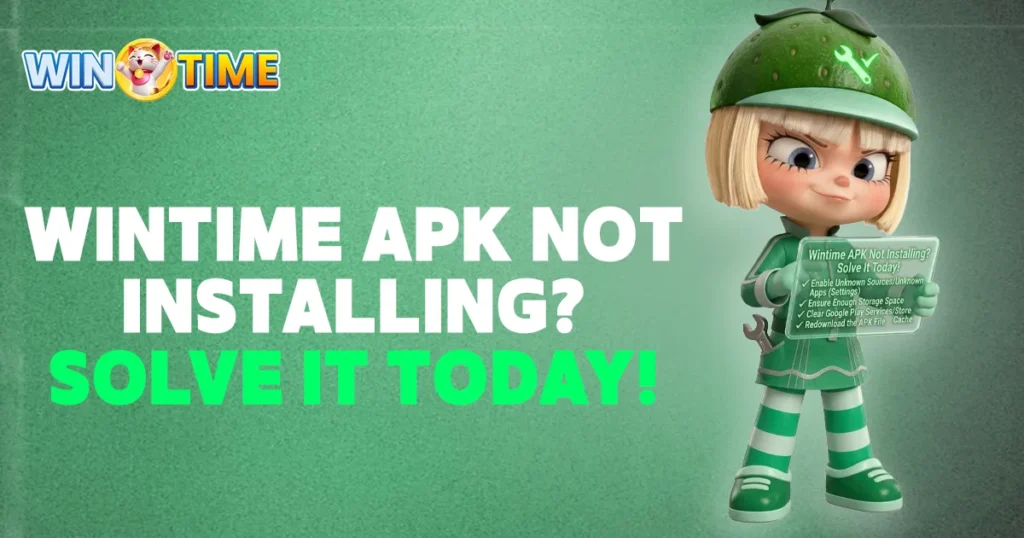
Wintime APK not installing can happen even after the APK file has successfully downloaded to your Android device. The installation may stop before completion, display an error, fail to respond, or prevent the app from opening afterward.
Instead of repeatedly downloading the same file, first determine where the installation fails. Wintime users should check the APK file, available storage, Android permissions, existing app version, and device compatibility separately. Finding the exact cause can help you choose the right solution without unnecessarily changing other phone settings.
Why Is Wintime APK Not Installing?
A Wintime APK Not Installing issue may be caused by insufficient storage, an incomplete download, installation permissions, an existing app conflict, or device compatibility. The error Android displays can provide an important clue about what needs attention.
Start by identifying the symptom:
| Installation Problem | What to Check |
| Install button does nothing | Permission or device response |
| Installation stops | APK file or storage |
| File cannot be opened | Download or file format |
| App already exists | Existing Wintime installation |
| Compatibility warning | Android/device requirements |
| App installs but will not open | App version or device |
Diagnosing the symptom first prevents you from repeating downloads when the actual issue is somewhere else.
Check Whether the APK Download Finished
An APK must download completely before Android can install it correctly. A connection interruption can leave a partial file on your device even though the file appears in the Downloads folder.
If Wintime APK Not Installing starts immediately after downloading the file, verify that the download reached completion before changing permissions or other Android settings. An interrupted file can appear in the Downloads folder even when all required data was not received.
Look at the Download Status
Open your browser’s download history or device Downloads folder. Check whether the Wintime APK shows as completed rather than paused, interrupted, or failed.
If the download was interrupted, remove the incomplete file before downloading it again. Starting with a complete file helps rule out corruption caused during transfer.
Avoid collecting several copies of the same APK because it can become difficult to identify which file is current.
Make Sure Your Device Has Enough Storage
Installation requires available device storage. Android may need additional temporary space while unpacking and preparing an application, so having space equal to the APK file size may not always be enough.
When Wintime APK Not Installing occurs on a nearly full device, storage should be one of the first areas to investigate.
Check Available Space
Open your Android storage settings and review how much space remains. Delete unnecessary downloads, videos, duplicate files, or unused applications if the device is close to capacity.
After freeing space, restart the installation using the completed APK rather than downloading another copy immediately.
Check Android Installation Permission
Android controls whether applications can be installed from sources outside the device’s standard app store. Depending on your Android version, permission may apply to the browser or file manager used to open the APK.
When Wintime APK Not Installing appears together with an Android permission warning, focus on the message shown by the system. Check which app—such as your browser or file manager—is requesting permission before making any changes.
Review the Permission Prompt
If Android blocks installation, read the warning shown on the screen. Your device may provide an option to manage installation permission for that specific source.
Only change this permission when you recognize and trust the source of the APK. Do not enable broad permissions simply to bypass a warning you do not understand.
After installation, you can review the permission again through Android settings.
An Older Wintime App May Be Causing a Conflict
An existing installation can sometimes interfere with a different APK version. This can happen when Android detects differences between the app already installed and the package you are attempting to add.
A Wintime APK Not Installing message in this situation may be related to the existing application rather than the new download itself.
Check Your Current Wintime Installation
Before removing anything, open your app settings and see whether Wintime is already installed. Check whether the existing version can be updated normally.
Do not uninstall the current app immediately. Make sure you know your account credentials and can obtain the appropriate installation again before removing an existing version.
What Does “App Not Installed” Mean?
Android may sometimes display a general App not installed message without clearly identifying the cause.
If Wintime APK Not Installing ends with an “App not installed” message, avoid assuming the APK itself is automatically damaged. The same message can appear because of storage limits, package conflicts, installation restrictions, or compatibility issues.
When this happens, avoid changing multiple settings at once. Check the APK download first, followed by storage, existing installation, permissions, and compatibility.
Working through those areas individually makes it easier to identify what actually resolves the problem.
Check Device and Android Compatibility
Not every APK works with every Android device or operating-system version. Software can require particular Android versions or device capabilities.
If Wintime APK Not Installing continues after the file, storage, and permissions have been checked, compatibility becomes more important.
Check Your Android Version
Open your device information settings and find the installed Android version. Compare it with any requirements provided through the current Wintime app source, when available.
Older devices may not support a newer app release. Likewise, some older APK versions may behave incorrectly on newer Android systems.
Do not try to force an incompatible package onto the device by disabling unrelated security settings.
Avoid Random APK Download Sources
Searching for another APK copy may seem like a quick solution when installation fails, but an unfamiliar download can create additional problems.
Files from unrelated sources may be outdated, modified, incorrectly labeled, or different from the version you intended to install.
If Wintime APK Not Installing is caused by a damaged download, obtain a fresh copy through the appropriate Wintime access source rather than moving between unknown APK websites.
This also makes version troubleshooting easier because you know where the file originated.
Restart Android Before Trying Again
If the APK appears complete, sufficient storage is available, and the necessary permission is correctly configured, restart the phone before making larger changes.
A restart clears temporary system processes that may be affecting Android’s package installer.
If Wintime APK Not Installing continues after restarting Android, pay attention to whether the same error returns at the same stage. A repeatable error provides a stronger clue about where the installation process is failing.
After the device starts again, locate the existing downloaded APK and attempt installation once. If another error appears, record the exact message instead of repeatedly selecting Install.
APK Installed but Wintime Does Not Open
Successful installation does not always mean the app will run correctly.
If Android reports that installation completed but Wintime freezes, crashes, or stays on a loading screen, the installation stage is already finished. The issue should now be treated as an app-performance problem.
Separate Installation From App Errors
This distinction prevents unnecessary reinstallation:
Installation fails → investigate APK, storage, permissions, conflicts, and compatibility.
Installation succeeds but app fails → investigate app version, device performance, network, or application behavior.
Repeatedly reinstalling a successfully installed app may not solve a problem that occurs only after launch.
Should You Delete and Download the APK Again?
Downloading the APK again makes sense when the original file is incomplete, damaged, or clearly failed during download.
It should not be the automatic solution for every Wintime APK Not Installing problem.
If Android consistently displays the same permission, compatibility, or package-conflict message, another copy of the same file may produce exactly the same result.
Use the error to decide whether a new download is actually necessary.
What to Check Before Seeking Support
When Wintime APK Not Installing remains unresolved after the relevant checks, record the exact error rather than repeatedly attempting installation. Your device model, Android version, APK version, and point of failure can provide more useful diagnostic information.
Prepare:
- Android device model
- Android version
- Available storage
- APK version when visible
- Exact installation error
- Where the installation stops
- Whether Wintime is already installed
- Screenshot of the error when appropriate
Do not provide passwords, verification codes, or other sensitive authentication details.
Specific technical information makes an installation issue easier to understand than simply reporting that the APK will not install.
Solve Wintime APK Installation Problems From the Error
A Wintime APK Not Installing issue is easier to resolve when you identify the stage where Android stops the process. An incomplete file requires a different response from insufficient storage, blocked installation permission, an existing app conflict, or an incompatible device.
Check the downloaded file first, then storage, Android permissions, the existing Wintime installation, and compatibility. Only download another APK when there is a reason to believe the current file is incomplete or damaged.
Following this order keeps the troubleshooting process focused and helps you determine what is preventing the Wintime APK from installing successfully.